> ## Documentation Index
> Fetch the complete documentation index at: https://quikirr.com/llms.txt
> Use this file to discover all available pages before exploring further.
# Customer Ranking
> Surface your most important customers, churn risks, and growth drivers with configurable rankings.
## Preview in Dashboard
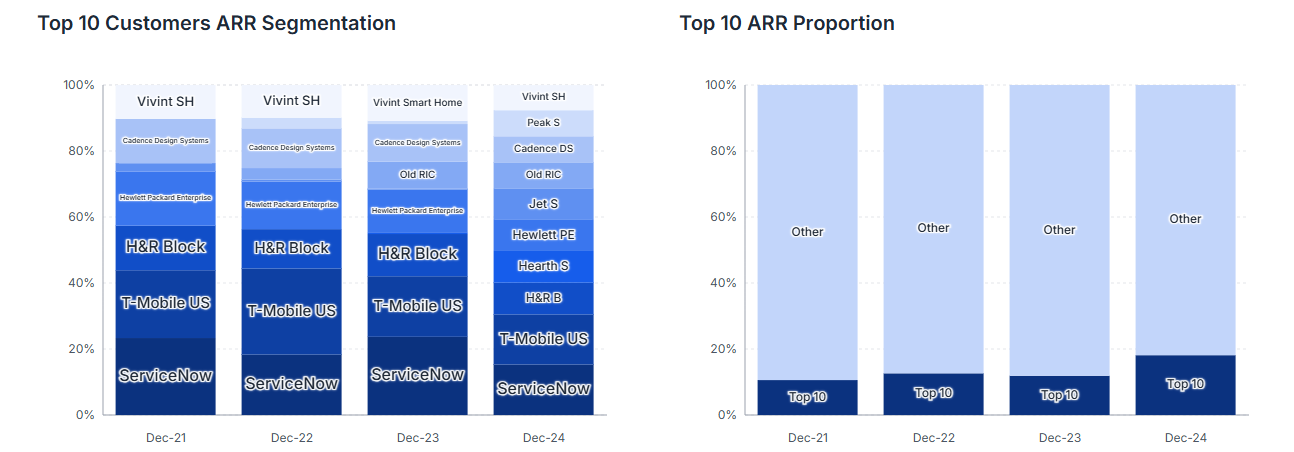 Head to **Analysis Views › Customer Ranking** to explore your accounts before you export:
* **Rank as-of** – pick any calendar month/quarter/year to anchor the ranking.
* **Top N** – choose the number of customers to display (Top 5, 10, 25 …).
* Toggle **Overall · New · Upsell · Downsell · Churn** to flip between ranking types.
* View results as **Charts** (bars & growth rates) or **Tables** (ARR \$, % growth, CAGR).
Every control re-renders instantly, so you can sanity-check the story before creating a workbook.
***
## Ranking Types
| Type | What It Shows |
| ---------------- | --------------------------------------------------- |
| **Overall** | Customers with the largest ARR at the selected date |
| **Top New** | Customers first seen in the selected period |
| **Top Upsell** | Largest absolute ARR increases |
| **Top Downsell** | Largest absolute ARR decreases |
| **Top Churn** | Customers whose ARR dropped to 0 |
***
## Ranking Options
In **Workbook Designer › Excel Output Selection**:
1. Expand **Customer Ranking**.
2. Pick the **Rank as-of** date & **Top N** (shared across all ranking types).
3. Check **Overall**, **New**, **Upsell**, **Downsell**, and/or **Churn**.
4. Quikirr creates one fully-formatted worksheet **per ranking type**.
***
## Excel Output Details
Head to **Analysis Views › Customer Ranking** to explore your accounts before you export:
* **Rank as-of** – pick any calendar month/quarter/year to anchor the ranking.
* **Top N** – choose the number of customers to display (Top 5, 10, 25 …).
* Toggle **Overall · New · Upsell · Downsell · Churn** to flip between ranking types.
* View results as **Charts** (bars & growth rates) or **Tables** (ARR \$, % growth, CAGR).
Every control re-renders instantly, so you can sanity-check the story before creating a workbook.
***
## Ranking Types
| Type | What It Shows |
| ---------------- | --------------------------------------------------- |
| **Overall** | Customers with the largest ARR at the selected date |
| **Top New** | Customers first seen in the selected period |
| **Top Upsell** | Largest absolute ARR increases |
| **Top Downsell** | Largest absolute ARR decreases |
| **Top Churn** | Customers whose ARR dropped to 0 |
***
## Ranking Options
In **Workbook Designer › Excel Output Selection**:
1. Expand **Customer Ranking**.
2. Pick the **Rank as-of** date & **Top N** (shared across all ranking types).
3. Check **Overall**, **New**, **Upsell**, **Downsell**, and/or **Churn**.
4. Quikirr creates one fully-formatted worksheet **per ranking type**.
***
## Excel Output Details
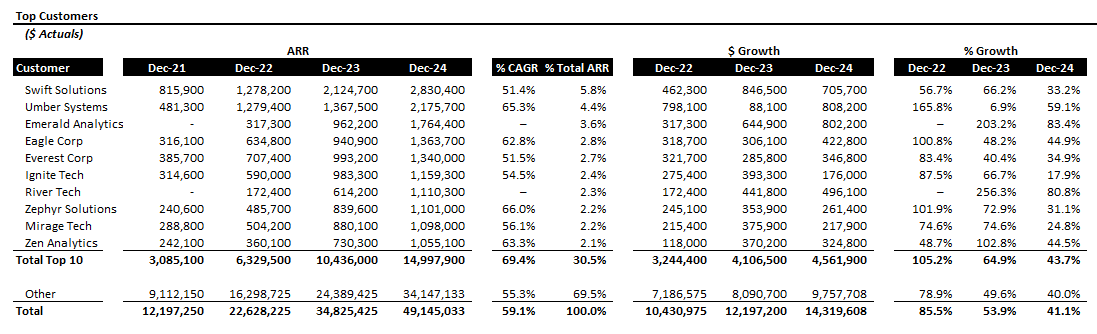 Each ranking sheet displays the top customers based on the selected criteria (e.g., Overall ARR, New, Upsell). It typically includes columns for Rank, Customer Name, ARR for relevant periods, and growth metrics. All values are linked to supporting data.
***
## Workflow Recap
Use interactive controls to validate ranking stories and spot anomalies.
Choose the anchor date, Top N, and ranking types; Quikirr remembers these for regeneration.
Get a dedicated sheet for each ranking—ready for board packs or deal models.
Each ranking sheet displays the top customers based on the selected criteria (e.g., Overall ARR, New, Upsell). It typically includes columns for Rank, Customer Name, ARR for relevant periods, and growth metrics. All values are linked to supporting data.
***
## Workflow Recap
Use interactive controls to validate ranking stories and spot anomalies.
Choose the anchor date, Top N, and ranking types; Quikirr remembers these for regeneration.
Get a dedicated sheet for each ranking—ready for board packs or deal models.