> ## Documentation Index
> Fetch the complete documentation index at: https://quikirr.com/llms.txt
> Use this file to discover all available pages before exploring further.
# Data Cleanup
> Fix duplicates, negatives, and irregular revenue in a couple of clicks - then audit every change right in Excel.
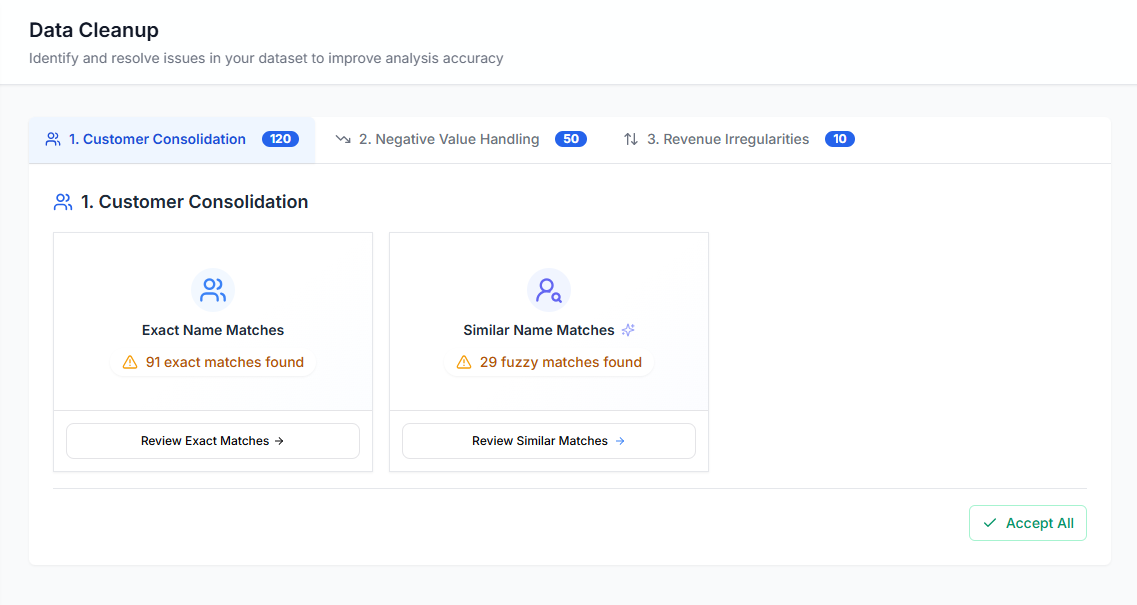 Quikirr's **Data Cleanup** capabilities fix common issues in real-world customer data, streamlining the data preparation process. Each action refreshes your dashboards instantly and writes an auditable tab to the generated Excel workbook so every stakeholder can trace numbers back to the original data.
***
## 1 · Customer Consolidation
Quikirr helps identify and merge duplicate customer records:
* **Exact Name Matches** – Detects records where customer names are identical.
* **Similar Name Matches** – Identifies records with slight variations in customer names (e.g., "ABC Inc." and "ABC Incorporated") that may represent the same entity.
Both types of matches are presented in separate queues. Click **Review** to step through duplicates one‑by‑one or hit **Accept All** to apply Quikirr's recommendations en masse.
> **Excel audit tab** → `Cust. Dedupe` will regenerate the cube data with the consolidated customer entries, using the original tab as reference.
***
## 2 · Negative Value Handling
Refunds, chargebacks, or fat‑finger errors? Pick the strategy that fits your analysis:
| Option | Effect in Excel |
| --------------- | -------------------------------------------------------- |
| **Leave as‑is** | Keeps negatives; formulas treat them as downsell / churn |
| **Zero‑out** | Removes the value entirely |
| **Net‑Out** | Offsets against a matching positive (coming soon) |
> **Excel audit tab** → `Negatives` flags every changed value and the action applied.
***
## 3 · Revenue Irregularities
Quikirr's **Data Cleanup** capabilities fix common issues in real-world customer data, streamlining the data preparation process. Each action refreshes your dashboards instantly and writes an auditable tab to the generated Excel workbook so every stakeholder can trace numbers back to the original data.
***
## 1 · Customer Consolidation
Quikirr helps identify and merge duplicate customer records:
* **Exact Name Matches** – Detects records where customer names are identical.
* **Similar Name Matches** – Identifies records with slight variations in customer names (e.g., "ABC Inc." and "ABC Incorporated") that may represent the same entity.
Both types of matches are presented in separate queues. Click **Review** to step through duplicates one‑by‑one or hit **Accept All** to apply Quikirr's recommendations en masse.
> **Excel audit tab** → `Cust. Dedupe` will regenerate the cube data with the consolidated customer entries, using the original tab as reference.
***
## 2 · Negative Value Handling
Refunds, chargebacks, or fat‑finger errors? Pick the strategy that fits your analysis:
| Option | Effect in Excel |
| --------------- | -------------------------------------------------------- |
| **Leave as‑is** | Keeps negatives; formulas treat them as downsell / churn |
| **Zero‑out** | Removes the value entirely |
| **Net‑Out** | Offsets against a matching positive (coming soon) |
> **Excel audit tab** → `Negatives` flags every changed value and the action applied.
***
## 3 · Revenue Irregularities
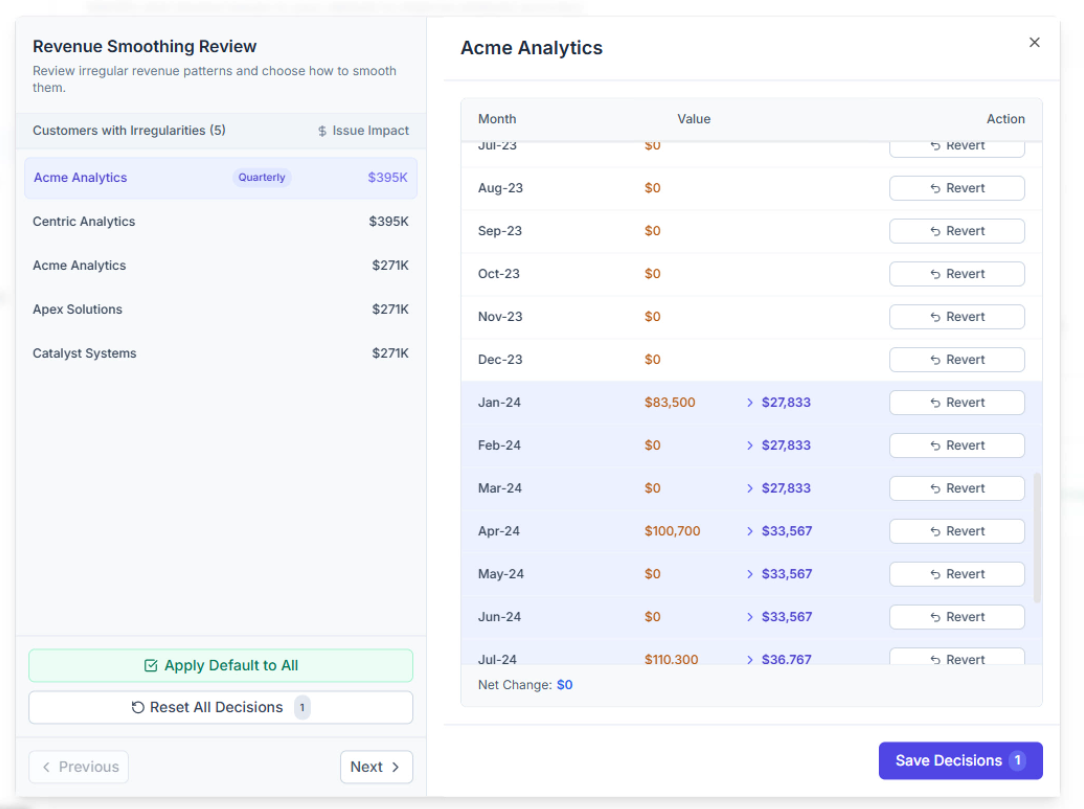 Quikirr detects **payment patterns**, **missing payments**, and **revenue spikes** to help smooth revenue trends for clearer cohort charts. You can review these by customer, tweak individual months, or apply default resolutions. The following actions can be applied:
| Option | Effect in Excel |
| --------------------------- | ------------------------------------------------------------------------------------------------------------ |
| **Quarterly/Yearly Spread** | Distributes a lump-sum payment over 3 or 12 periods (or 1 or 4 for quarterly input data). |
| **Spike Smooth** | Replaces an unusually high revenue spike with the average of the prior periods. |
| **Missing Spread** | Allocates a revenue spike (that follows a zero-revenue period) between the zero period and the spike period. |
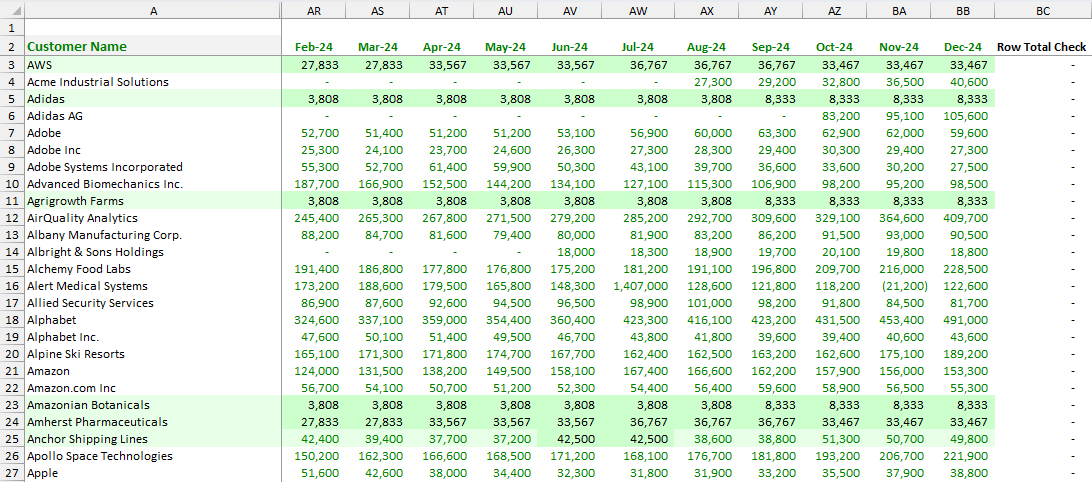
> **Excel audit tab** → `Smoothing` highlights the altered values from the rules applied.
Quikirr detects **payment patterns**, **missing payments**, and **revenue spikes** to help smooth revenue trends for clearer cohort charts. You can review these by customer, tweak individual months, or apply default resolutions. The following actions can be applied:
| Option | Effect in Excel |
| --------------------------- | ------------------------------------------------------------------------------------------------------------ |
| **Quarterly/Yearly Spread** | Distributes a lump-sum payment over 3 or 12 periods (or 1 or 4 for quarterly input data). |
| **Spike Smooth** | Replaces an unusually high revenue spike with the average of the prior periods. |
| **Missing Spread** | Allocates a revenue spike (that follows a zero-revenue period) between the zero period and the spike period. |
> **Excel audit tab** → `Smoothing` highlights the altered values from the rules applied.
 ***
## Review & Apply
Ideal when data quality is mission‑critical. Quikirr ranks candidates by dollar impact so you can concentrate on high‑leverage fixes first.
Apply the default resolution to all and keep moving. Perfect for large datasets or fast prototypes.
When you regenerate your workbook, Quikirr creates dedicated ***cleanup*** tabs that document *every* change—original value, cleaned value, rule, user, and timestamp—so auditors can follow the trail without leaving Excel.
***
**Best Practice: Sequential Clean-Up**
Apply actions in this order:
1. Customer Consolidation
2. Negative Value Handling
3. Revenue Irregularities (Smoothing)
Skipping ahead locks previous steps to prevent data conflicts. To edit a locked step, reset subsequent actions. All steps can be reset and revisited.
***
## Review & Apply
Ideal when data quality is mission‑critical. Quikirr ranks candidates by dollar impact so you can concentrate on high‑leverage fixes first.
Apply the default resolution to all and keep moving. Perfect for large datasets or fast prototypes.
When you regenerate your workbook, Quikirr creates dedicated ***cleanup*** tabs that document *every* change—original value, cleaned value, rule, user, and timestamp—so auditors can follow the trail without leaving Excel.
***
**Best Practice: Sequential Clean-Up**
Apply actions in this order:
1. Customer Consolidation
2. Negative Value Handling
3. Revenue Irregularities (Smoothing)
Skipping ahead locks previous steps to prevent data conflicts. To edit a locked step, reset subsequent actions. All steps can be reset and revisited.