> ## Documentation Index
> Fetch the complete documentation index at: https://quikirr.com/llms.txt
> Use this file to discover all available pages before exploring further.
# Cross-Sell Analysis
> Reveal product-to-product expansion paths and add an optional Cross-Sell bar to your waterfalls.
## Data Requirements 🔑
Cross-Sell works only when your **source cube has one row per *Customer × Product* combination**.
1. **Customer column** – unique identifier for each logo.
2. **Product column** – the product / service sold to that customer.
3. **Date columns** – ARR (or revenue) values by period.
If your cube is aggregated at the customer level (one row per customer), Cross-Sell cannot be calculated. Make sure each product a customer buys has its own row.
When you **Confirm Structure** during ingestion, map the **Product** column in addition to **Customer**. Quikirr stores that mapping and unlocks Cross-Sell everywhere else.
***
## Add in Workbook Designer
1. Click **Export to Excel**.
2. **Cross-Sell** is enabled by default.
3. Click **Generate to Excel** and proceed to the "A Cross-Sell" tab when done.
***
## Excel Output Details
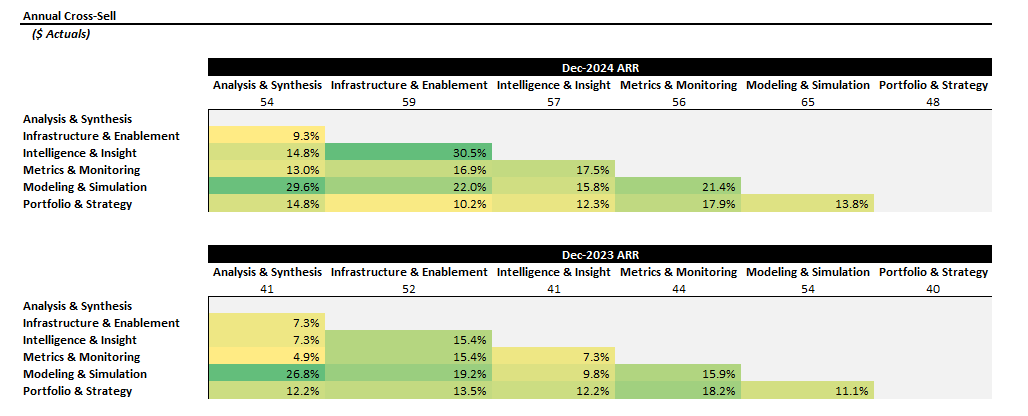 **What you get**
* One heat-map matrix **per year**.
* **Rows** = origin product; **Columns** = destination product.
* **Cell value** = % of customers who bought *destination* product given they already own *origin*.
* **Diagonal** shows logo counts (grey header row).
* Everything is formula-driven off `Cross-Sell Calculations` tab.
***
## Link to Waterfalls
If you need to add a **Cross-Sell** component to your Excel waterfalls:
1. In **Workbook Designer › ARR Waterfall > Segments**.
2. Choose **Product** (the same column you mapped during ingest) as the **Stacked Waterfall** dimension.
3. When you generate, the Cross-Sell component appears for this product waterfalls worksheet.
Cross-Sell bars appear only when the stacked dimension is **Product** and the cube contains valid customer-product rows.
***
## Workflow Recap
Make sure your cube is **Customer × Product**. Map the Product column during ingest.
Pick periods and optional filters; Quikirr prepares the matrix sheets.
Heat-map matrices and a calc tab arrive fully formatted.
Use Stacked Waterfalls on Product and enable the Cross-Sell component for a green expansion bar.
**What you get**
* One heat-map matrix **per year**.
* **Rows** = origin product; **Columns** = destination product.
* **Cell value** = % of customers who bought *destination* product given they already own *origin*.
* **Diagonal** shows logo counts (grey header row).
* Everything is formula-driven off `Cross-Sell Calculations` tab.
***
## Link to Waterfalls
If you need to add a **Cross-Sell** component to your Excel waterfalls:
1. In **Workbook Designer › ARR Waterfall > Segments**.
2. Choose **Product** (the same column you mapped during ingest) as the **Stacked Waterfall** dimension.
3. When you generate, the Cross-Sell component appears for this product waterfalls worksheet.
Cross-Sell bars appear only when the stacked dimension is **Product** and the cube contains valid customer-product rows.
***
## Workflow Recap
Make sure your cube is **Customer × Product**. Map the Product column during ingest.
Pick periods and optional filters; Quikirr prepares the matrix sheets.
Heat-map matrices and a calc tab arrive fully formatted.
Use Stacked Waterfalls on Product and enable the Cross-Sell component for a green expansion bar.